


Windows 10 is now on majority of machines (and if you aren’t, why not!), we all love the clean looks and speedy searching feature kindly brought to us by Cortana. Love it or hate it, Windows really are pushing features out for Windows 10 left, right and centre. The most recent version is 1903 which was released mid May, (Though, some of you had to wait for it to automatically prompt on your PC to upgrade) and now we are a couple of months down the line, we recommend upgrading to it if your not on it already! To check, you can do the following. 1) Hover your mouse over the start button and right click, 2) Left click on System, 3) Underneath ‘Windows Specifications’ you will version your version number underneath where it says Edition.
If you don’t feel comfortable upgrading your machine yourself and would rather professionals like ourselves to do so, bring your PC into store and we can make sure your PC upgrades to the newest version without any hassle, taking a lot of weight off your shoulders! Your precious data and programs will stay intact and the latest drivers will be installed to make sure your running at 100%.
Here are the top features that come with Windows 10 version 1903:
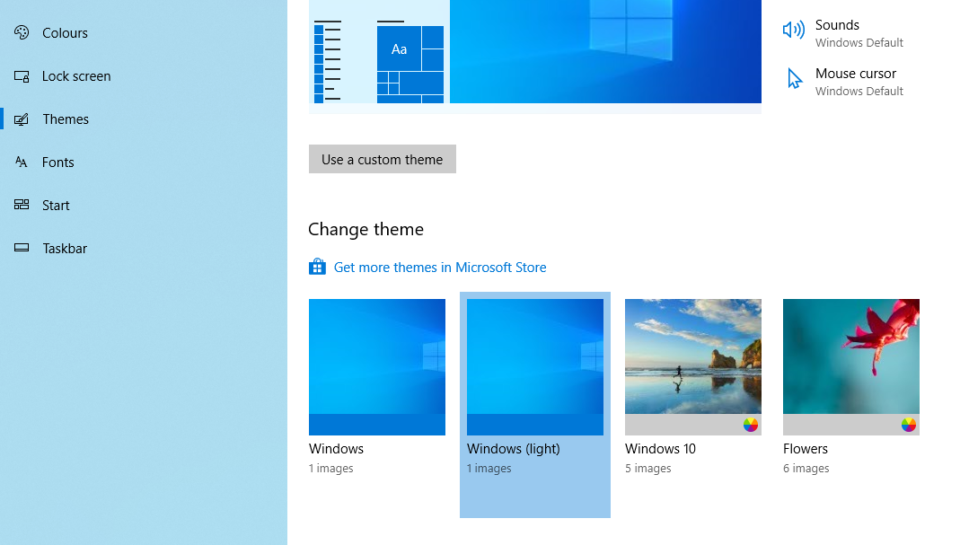
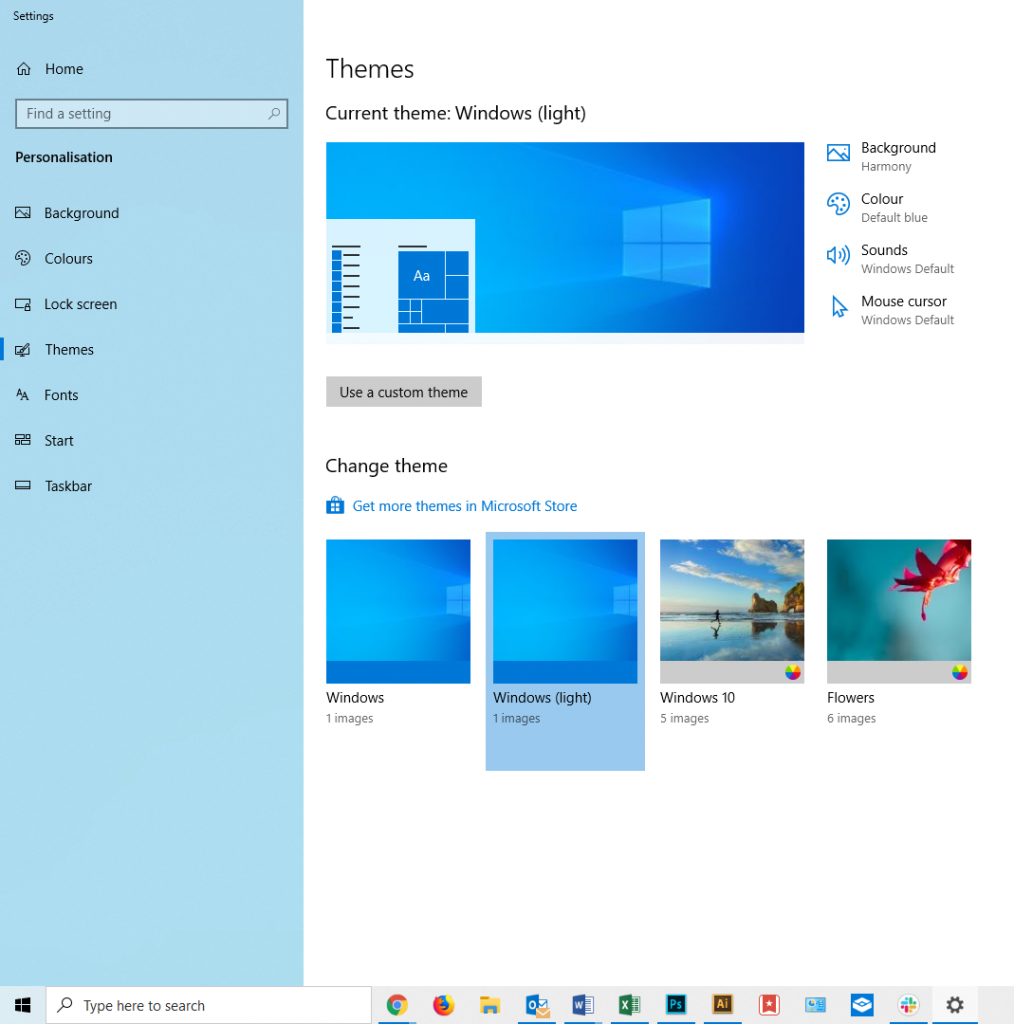
The most notable and obvious feature is the addition of the ‘Light Theme’. It gives an extremely clean, bright and easy to see look and feel and I would regard this to anyone who tends to struggle to find their way around at times. You will find the light theme in Settings > Personalisation > Themes > Windows (light)
Cortana and Search are now separate (hooray!):
This is very obvious when you first sign in after upgrading to Windows 10 version 1903 as you will see the normal search bar with the Cortana “O” next to it. So yes, they have finally moved Cortana away and created a separate entity for search and Cortana.
More Features:
Windows 10 now allows us to Pause updates on our home computers, stopping those pesky updates that may be causing a fundamental issue with your PC or laptop. Encase you weren’t sure where to find this, go to Settings > Update & Security > Windows Updates and you will see the Pause Updates button staring back at you!
Quick access brightness control within the Action Center has now been made into a slider rather than a button, and is also at the bottom of the centre rather than mixed amongst all the other buttons.
Last notable feature we would like to add here is the Windows Sandbox mode. This obviously won’t affect your day to day users, but for us Techys out there, this is a blessing in disguise! It allows us to open a virtual Windows 10 Sandbox machine with the very very bare basics (and I really mean, bare basics) allowing you to do whatever you like within that virtual machine, and once your done you close the window and absolutely nothing is saved. Poof. Gone. In a cloud of smoke as if it never even happened. You must be wondering ‘Why would anyone need that?’ Well this allows us to install and run programs that we think may cause an issue with the physical machine or another persons machine taking away the unknown and allowing us to test it before it’s put on a live machine. It’s also great for opening files and installing programs from unknown sources which you think could contain a virus. Again once closed, the machine leaves no remnants of itself and is totally seperated from the physical machine.
Thanks for reading. Please follow us on Facebook, Instagram and check back once in a while!
